Settings
ProSettings control how auto-scheduling works — how long a session lasts, how many can happen in a day, and how far in advance it must be announced. Go to Auto Scheduler > Settings from the sidebar.
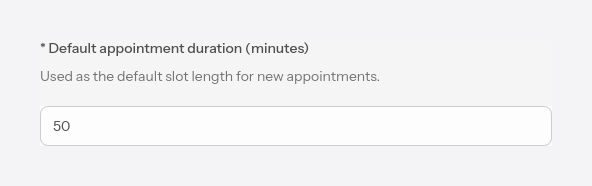
#Default duration
The duration a new appointment is automatically filled with (in minutes). It's the duration the client sees when they pick a free interval for a session.
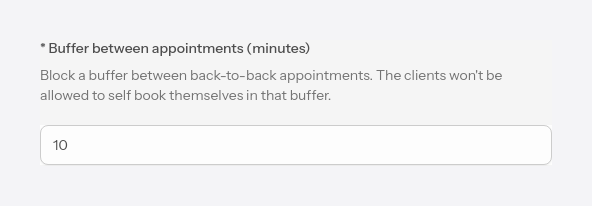
#Break between appointments
A free interval automatically left between two consecutive sessions, in which clients can't book. Useful so you have time to breathe or take notes between clients.
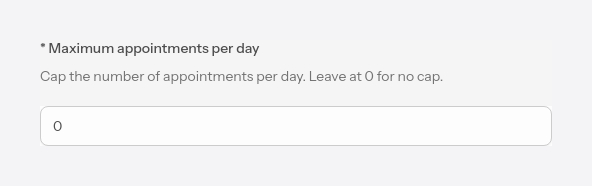
#Maximum appointments per day
How many appointments you accept in a single day. When the limit is reached, the day no longer appears as available in the booking calendar, even if there were still free intervals. Leave 0 to impose no limit.
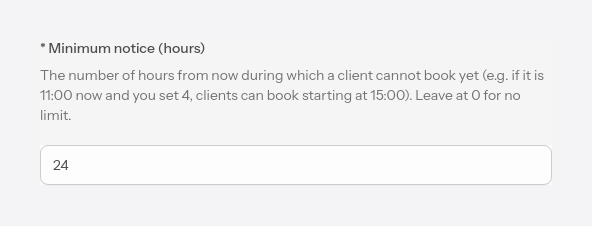
#Minimum notice
How many hours ahead the earliest an appointment can be made. For example, with a 4-hour notice, a client who arrives at 11:00 can only book starting from 15:00. That way you avoid last-minute requests. Leave 0 to impose no notice.
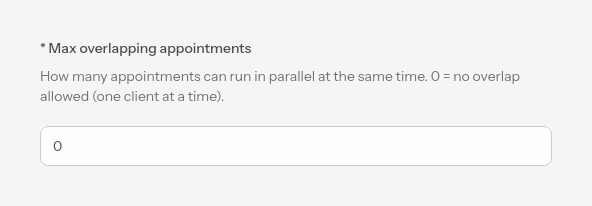
#Maximum overlapping appointments
How many sessions can run in parallel in the same interval. 0 means you allow no overlap — a single client at a time. A higher value is useful if you work with groups or have several offices.
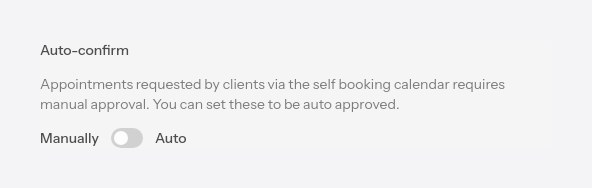
#Auto-confirmation
Sets what happens with a request sent by a client. Manual, the request waits for your approval in Requests panel. Auto, the appointment is confirmed automatically, without an extra step.
If you work with external apps or have several scheduling flows that aren't integrated into RespireBien, we recommend Manual mode to make sure there are no overlaps