Availability
ProThe Auto Scheduler lets clients book an appointment themselves, through a public link, in the intervals you mark as available. Go to Auto Scheduler > Availability from the sidebar.
#Drawing an interval
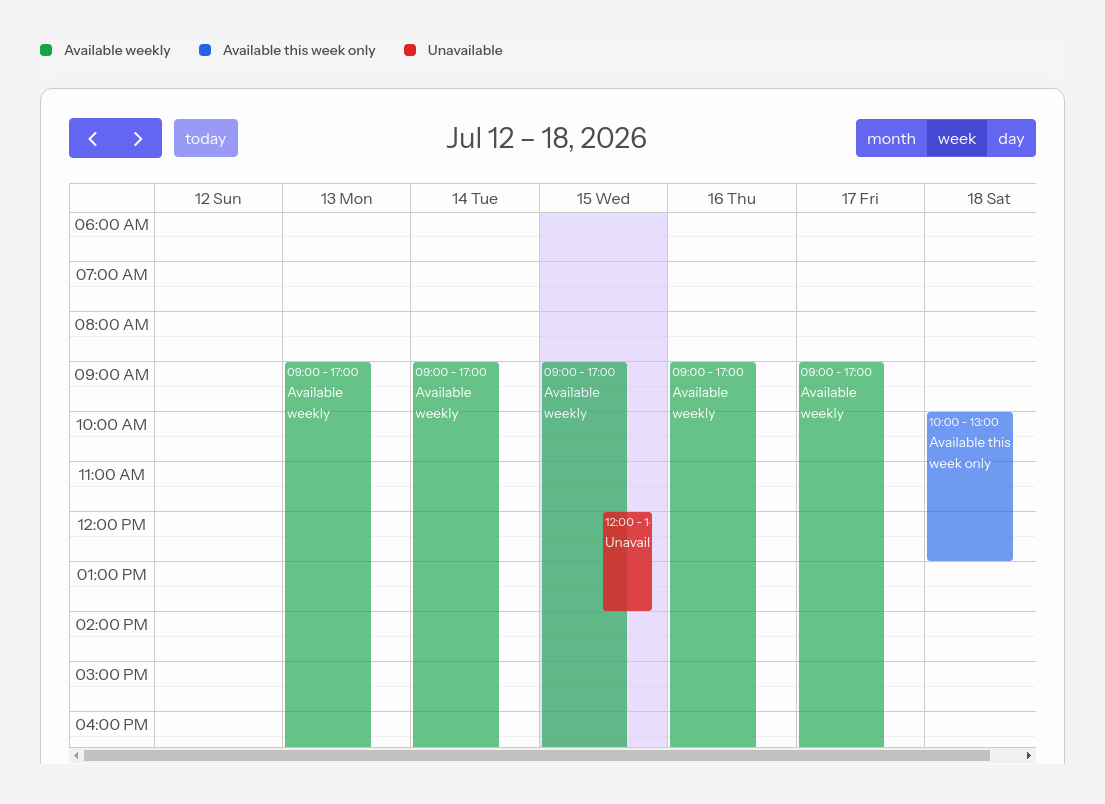
Drag with your mouse across the calendar, over the hours you want. A window opens where you choose the interval type, the start and end time and, optionally, a note. Each type has its own color, explained in the legend above the calendar.
#Available every week
The green interval, recurring — your usual schedule. It repeats automatically every week, on the same day and at the same time (for example, Monday–Friday, 09:00–17:00). You set it once and it stays valid week after week, without re-adding it.
#Available only this week
The blue interval, one-off — extra availability on a specific date, outside your usual schedule. Use it when you can see clients at a time you don't normally work, without changing the recurring schedule (for example, a Saturday morning, as a one-off).
#Unavailable
The red interval, one-off — blocks a period when you're not available, even if the recurring schedule would say you are: vacation, a day off, a personal appointment. It can cover the whole day (tick All day) or just a specific interval. Clients can't book during this time.
The blue and red intervals are one-off exceptions: they apply only once, on the chosen date, and don't repeat. The recurring green schedule remains the base of the week.
#Unavailable with no overlap
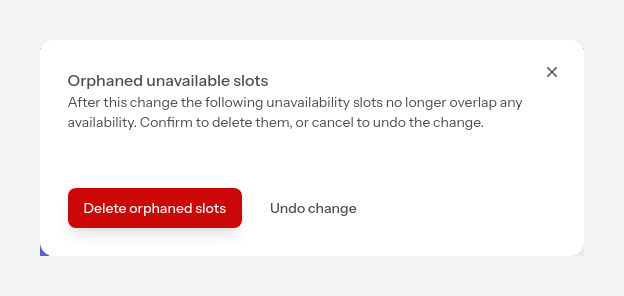
An Unavailable interval only has an effect where it overlaps with an availability — it blocks part of the time you're otherwise free. If you change your availability so that an unavailable interval no longer covers anything (for example you move the green interval to another day), it's left with no effect.
When this happens, the app warns you and lets you choose:
- Delete the intervals with no overlap — removes the unavailable intervals left with no effect.
- Cancel the change — reverts to the previous state, keeping the intervals as they were.
#External calendars block slots
If you've connected an external calendar in External calendar sync and ticked the calendars that matter, events brought in from them are treated as appointments: overlapping intervals no longer appear as free slots on the public booking page and count toward the daily limits and the concurrent-appointment limits in Settings.
That way, a client can't book over something you already have in your personal calendar, even if that event wasn't created in RespireBien.