Notifications
RespireBien sends you automatic notifications so you never miss an appointment or a reminder. You get them by email, push (straight to your device), or both — and you choose exactly what and how.
#Where to configure them
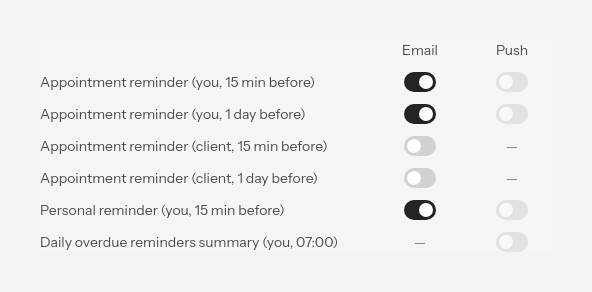
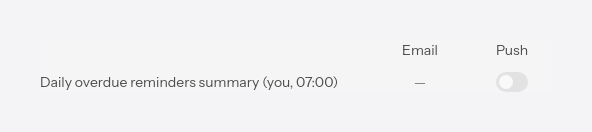
All notifications are controlled from a single place: Settings > Notifications. Each notification type has a row, with two columns — Email and Push — that you turn on or off with a toggle. Changes are saved instantly.
For push notifications you need to install the app on your mobile phone. See the Mobile app guide.
#Email or push
- Email lands in the inbox (yours or the client's) and works anywhere, without the app being open.
- Push appears straight on the device (phone or desktop), as a short notification. It reaches only you, never clients.
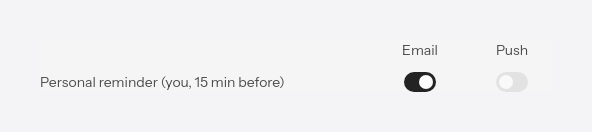
The “—” dash in the grid means that channel doesn't exist for that notification.
Push notifications only work after you allow them in the browser. When you turn on the first Push toggle, the browser asks for permission; if you grant it, the device subscribes automatically. See also the Mobile app.
#Notification types
#Your appointments
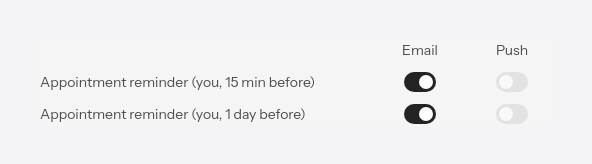
Alerts you about your own sessions: one notification the day before and one 15 minutes before. Available by email and push.
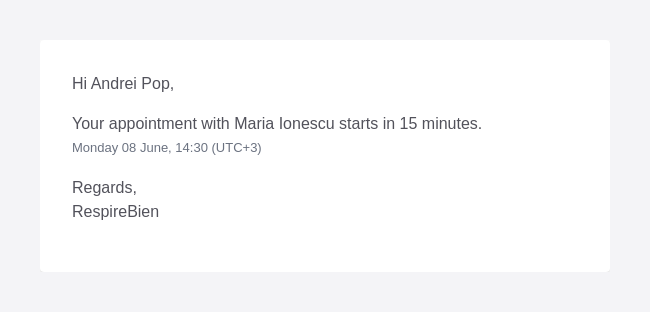
Example of an email you receive:
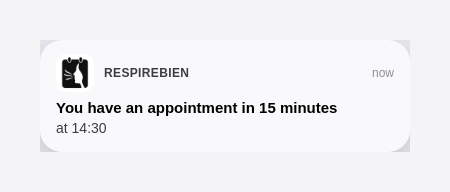
Example of a push notification:
#Clients' appointments
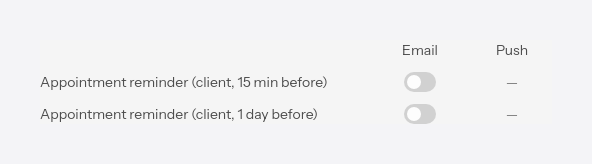
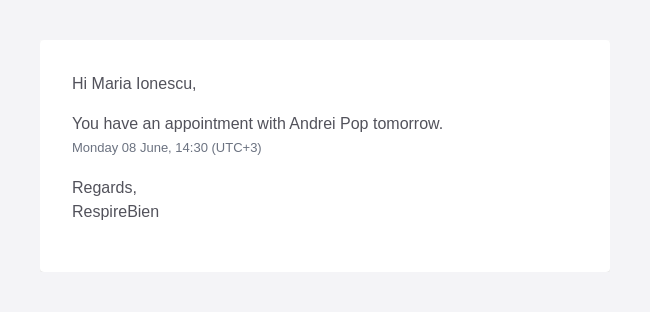
They send the client, on your behalf, a reminder for their session — one the day before and one 15 minutes before. By email only, because push notifications reach only you.
Example of an email the client receives:
#Reminders with a date
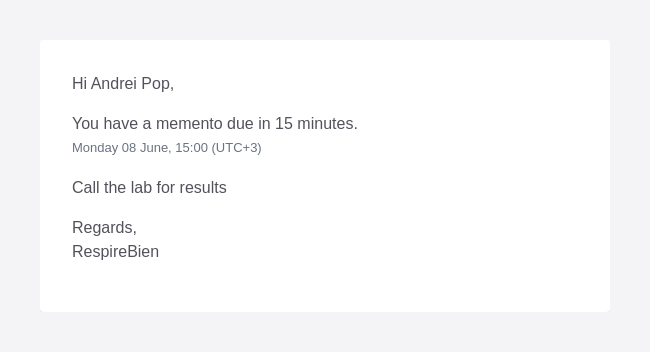
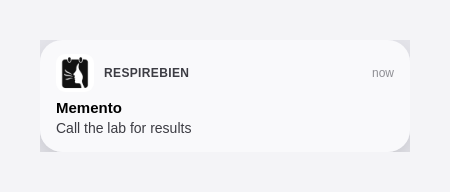
They remind you of a reminder with a date 15 minutes before the set time. Available by email and push.
Example of an email you receive:
Example of a push notification:
#Summary of outstanding reminders
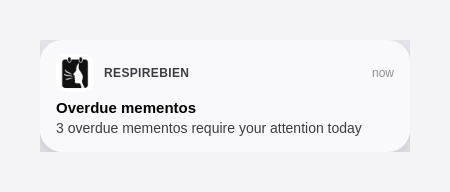
Every morning at 07:00, you get a summary of the reminders left unresolved. By push only.
Example of a push notification:
Besides these, some emails are always sent, regardless of your settings: the confirmation and rescheduling of a session to the client, and the “invoice ready” email, with the PDF attached.