Files
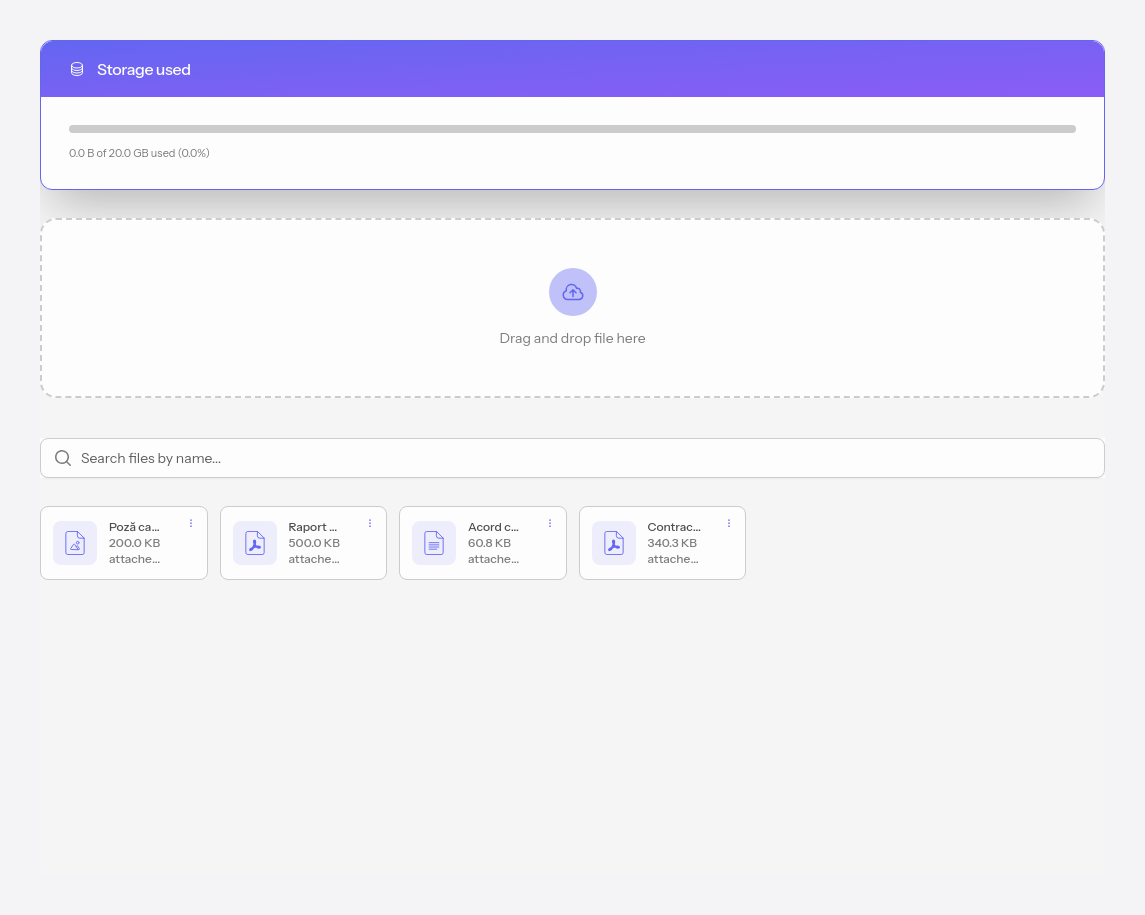
ProFiles let you keep documents in your account — contracts, forms, reports, images.
A file is attached in three ways, depending on what it represents: to the account, to a client, or to a note. No matter where you upload it, it appears on the central Files page and uses the same plan storage space.
#Attached to the account
Files that belong to your practice, not to a specific client — contract templates, confidentiality agreements, forms, any document you need. You upload them directly on the Files page, by dragging them over the upload area or choosing them from your device.
#Attached to a client
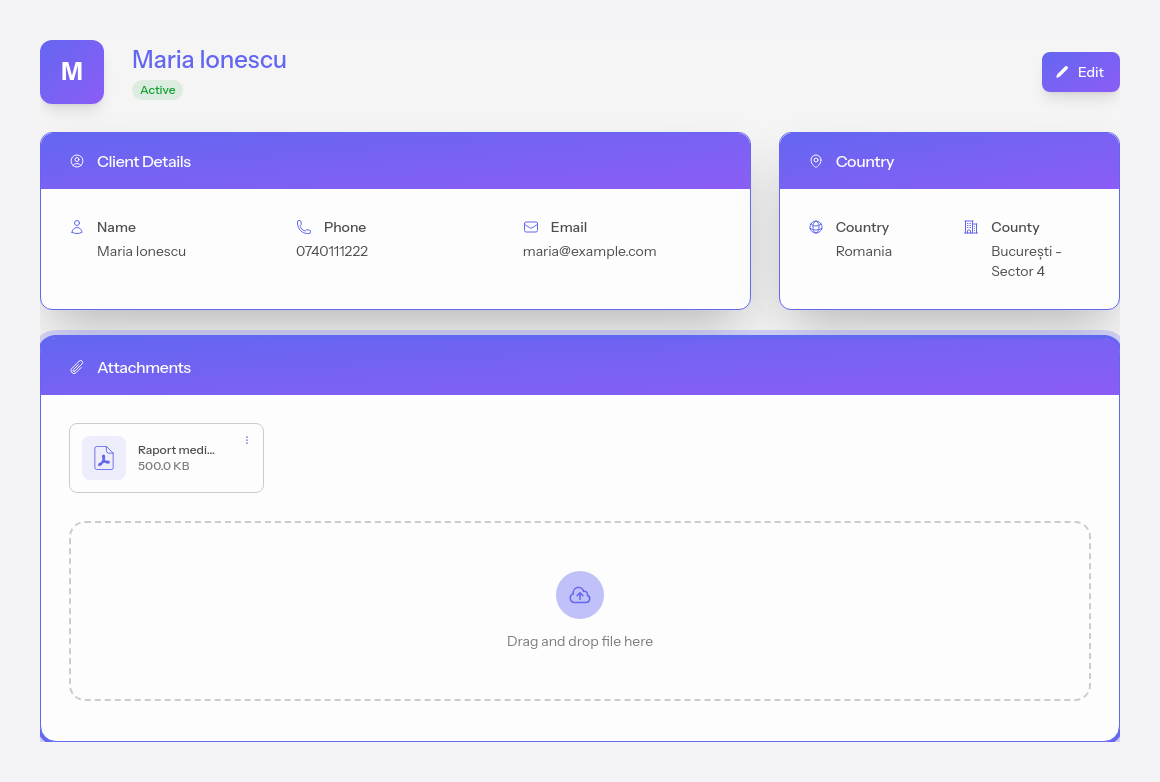
Documents specific to a particular client — a medical report, a referral, any file related to that client. You upload them from the client's profile, in the Attached files card.
#Attached to a note
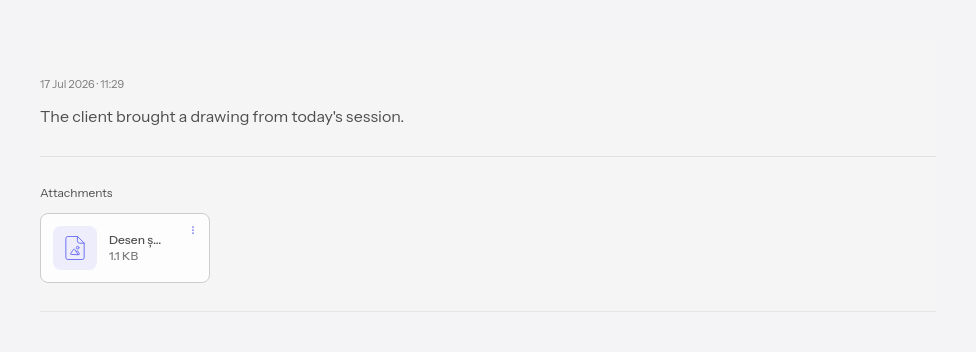
Files relevant to a specific session — for example a drawing made by the client during the session, or anything else specific to that note. While you're writing the note, tap the paperclip button in the editor and choose the file.
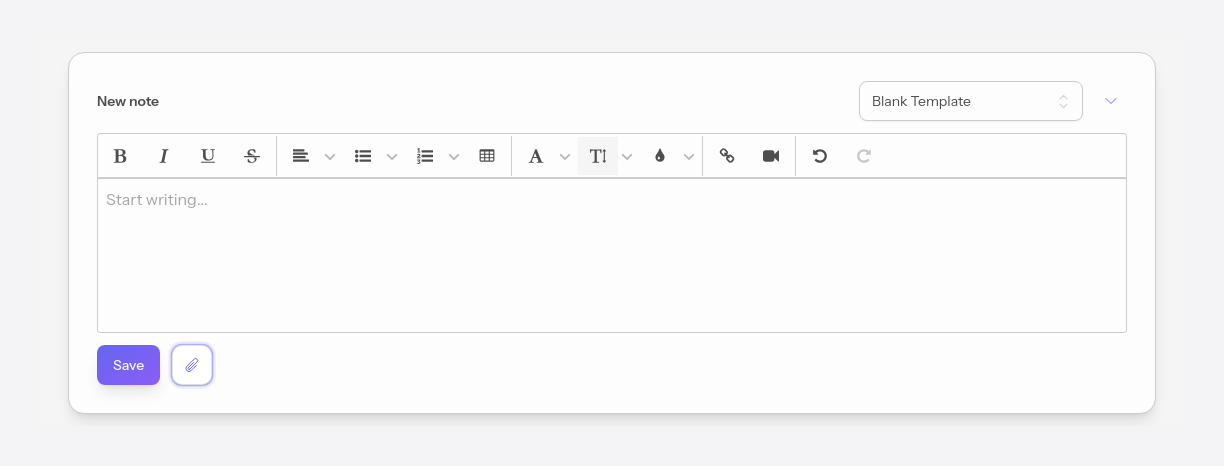
The file is uploaded together with the note. After saving, it appears under the note, in the Attached files section.
#How to tell where a file is attached
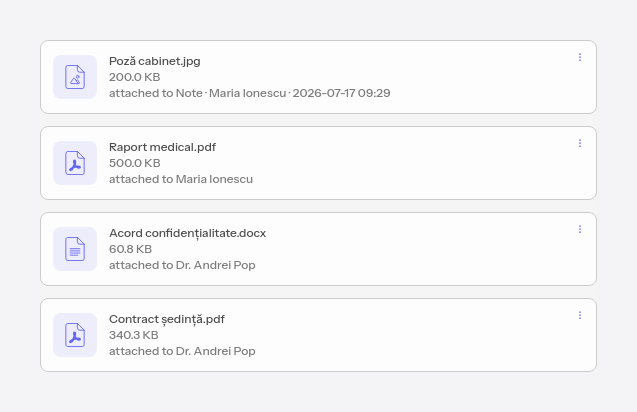
On the Files page all files appear, no matter where you attached them. Under each file, the “attached to” label tells you at a glance whom it belongs to:
- account files show your name;
- a client's files show the client's name;
- a note's files show Note · [client] · [session date].
You can search for a file by name, download it, or delete it permanently.
Storage space depends on your plan: 5 GB on Pro and 20 GB on Ultra. Deleting a file is permanent and frees the space back up.