Apple Calendar
ProApple Calendar connects with an app-specific password, not your regular account password. The sync is two-way, just like Google.
Go to External calendar sync from the sidebar.
#Connecting
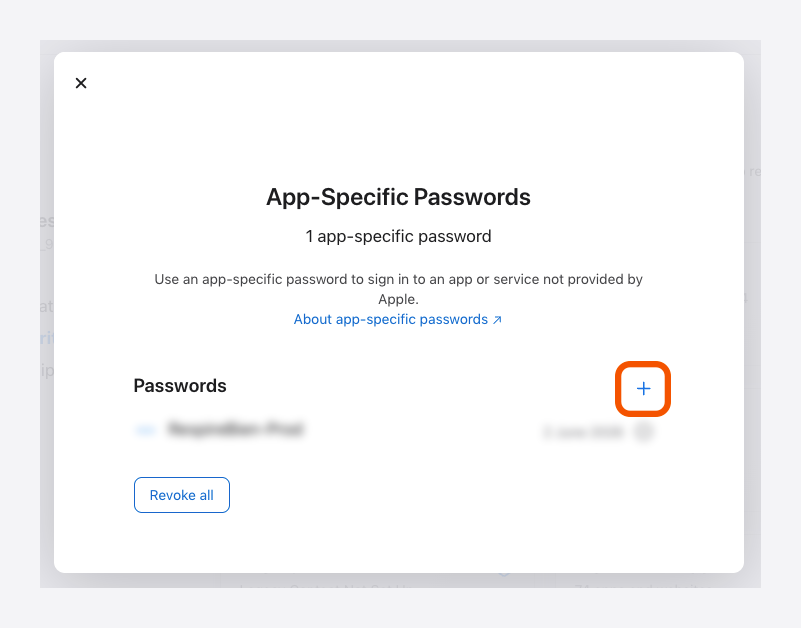
First, generate an app-specific password from your Apple account, at appleid.apple.com > Sign-in & Security > App-Specific Passwords.
In the App-Specific Passwords section, press + to generate a new one.
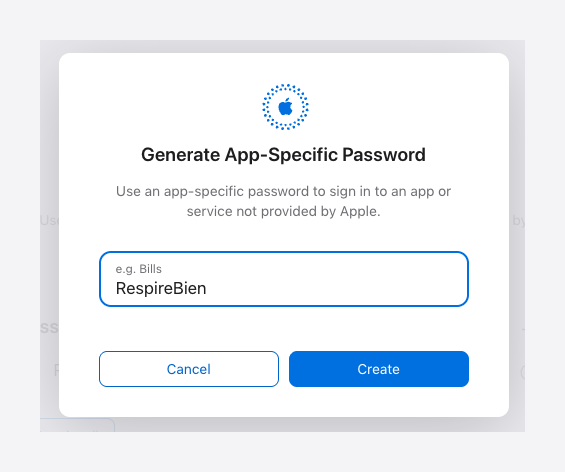
Give it a name (for example "RespireBien") and press Create.
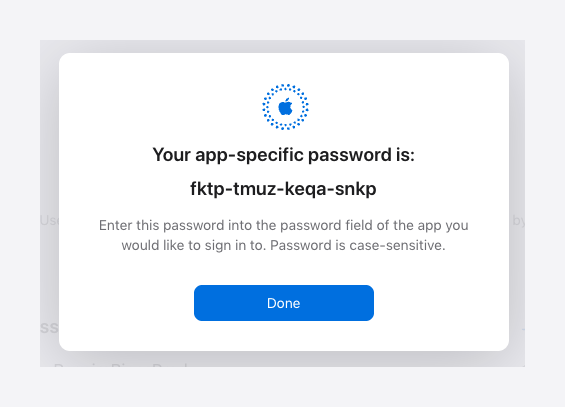
Copy the password shown — you'll enter it into the app.
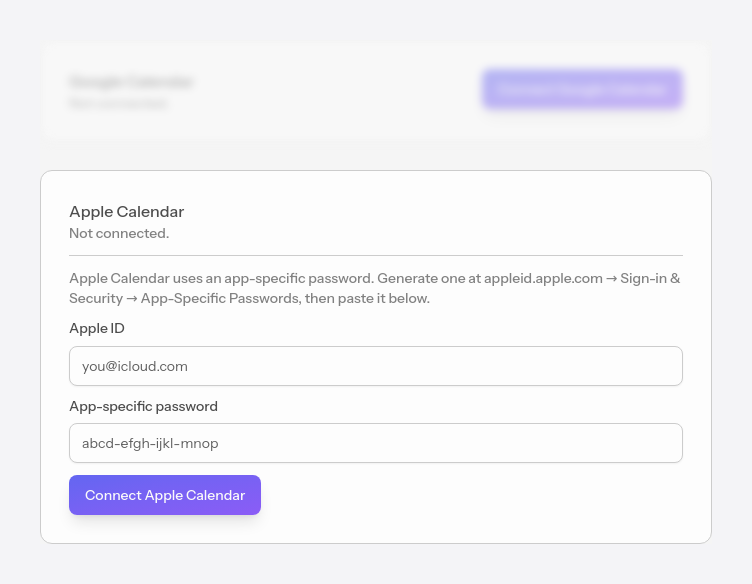
Then return to the app, enter your Apple ID and the copied password, and press Connect Apple Calendar.
If you change your Apple account password, the app-specific password becomes invalid and you'll have to generate a new one and reconnect the calendar.
#Choosing which calendars to sync
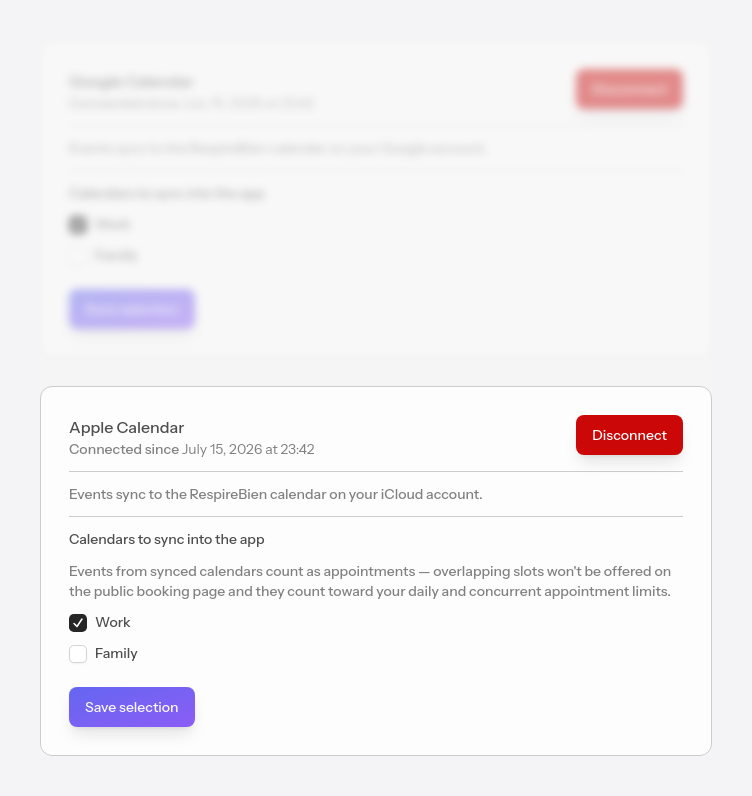
After connecting, tick the calendars you want us to bring events from into the app, then press Save selection.
Events brought in from external calendars are marked with a lock (🔒), cannot be edited from the app, and you can assign them to a client in the External events section.
We bring in external events automatically, once an hour. If you want to refresh them immediately, use the Sync now button in Calendar — available once every 10 minutes.