Appointment types
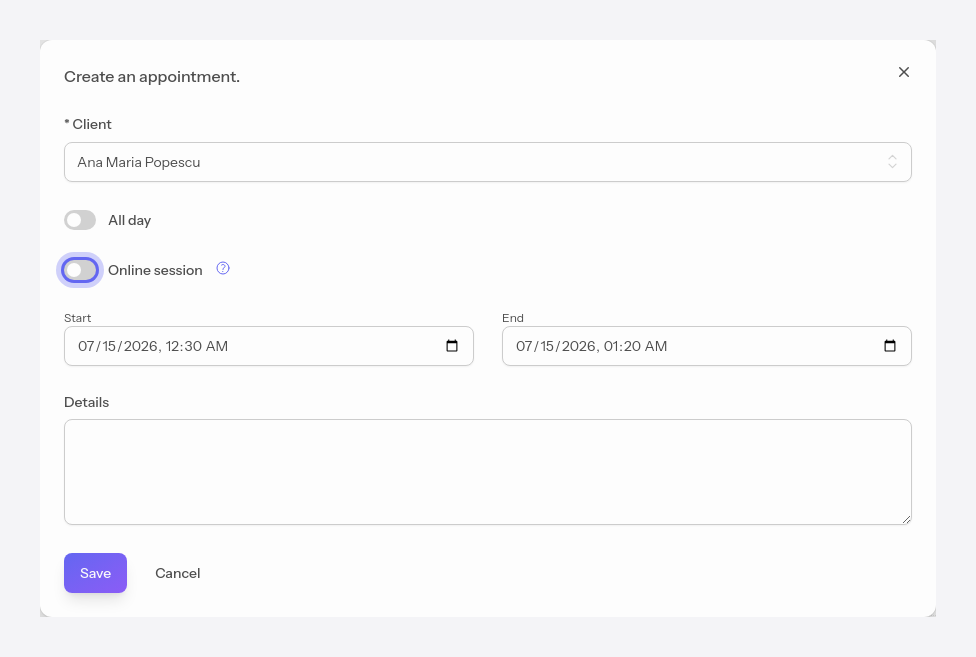
To create an appointment, click a free slot in the calendar. The form opens, where you choose the client, the start and end time, and, optionally, details.
#In-office or online appointment
The Online session field sets the type of the session. Left disabled, the appointment is in-office.
Enabled, the appointment becomes online, and the app automatically generates a video call link.
#Video session
An online appointment will generate 2 links for the video call when it is opened.
Join the session opens the video call as the host, and Copy the client's link copies the link you send to the client.
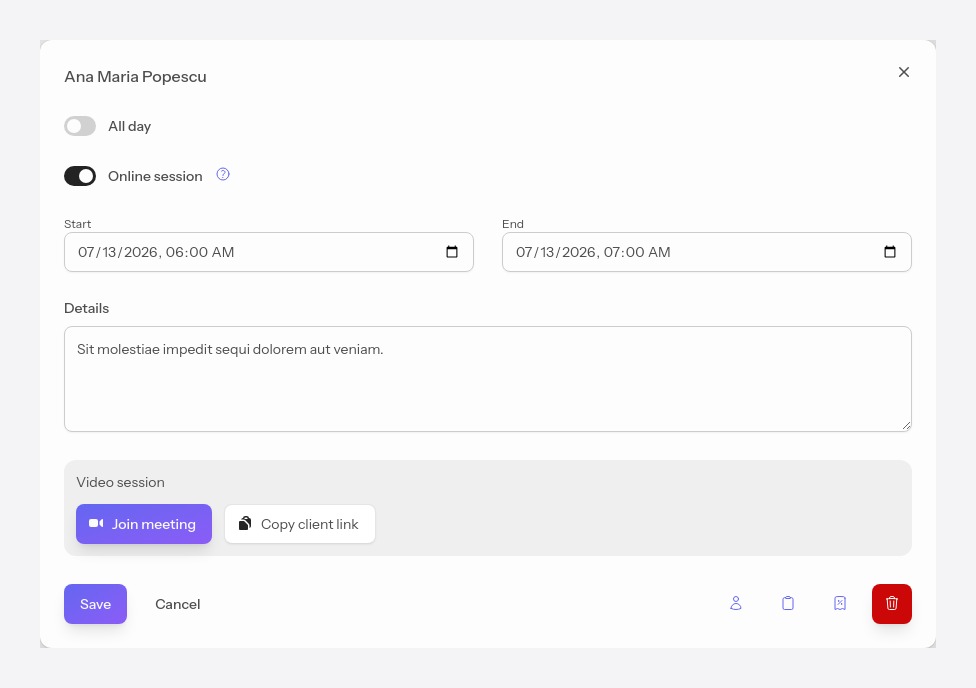
The links are valid as long as there is a participant connected, or for a maximum of 30 minutes after the appointment's end time
If notifications are turned on for the client (see the Notifications section), then they automatically receive the call link by email in the notification.
For more details about video calls, consult the Video calls section.