# Client operations
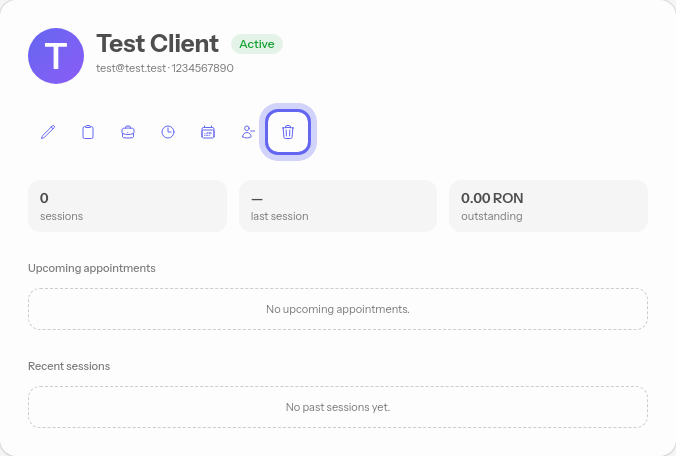
Select a client from the list to open their record on the right. Below the client's name you will find a row of quick actions.
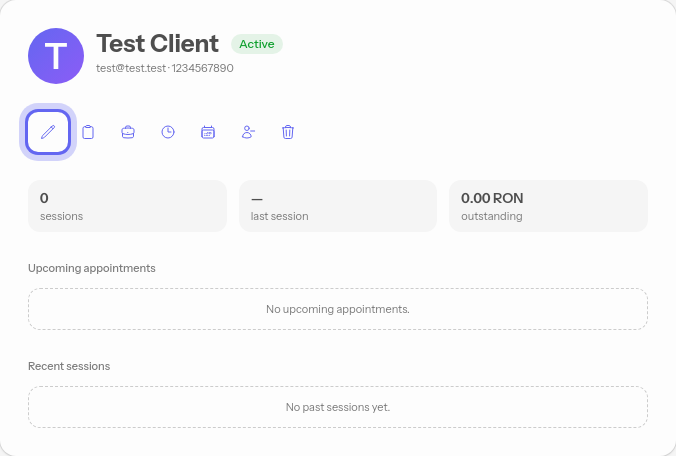
## Edit
Opens the client's page, where you can view and edit their data.
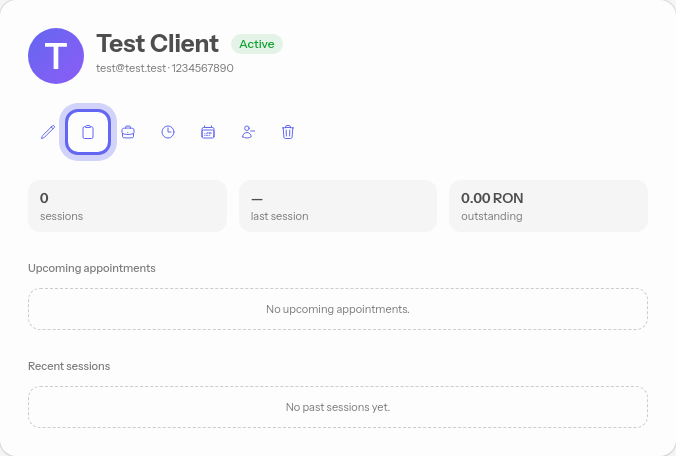
## Adding notes to the latest appointment
Opens all the notes associated with this client
> [!info]
> A new note created from this page will automatically be attached to the client's most recent appointment
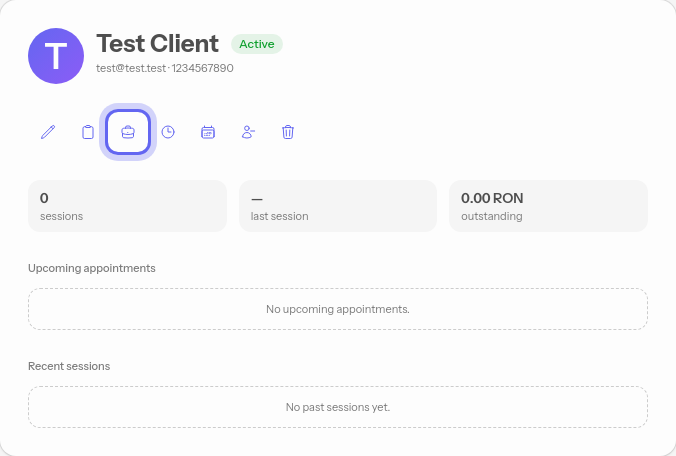
## Costs and services
Opens the client's services and rates, where you can set custom prices for them — see **[Per-client cost services](/help/invoicing/services#per-client-cost-services)**.
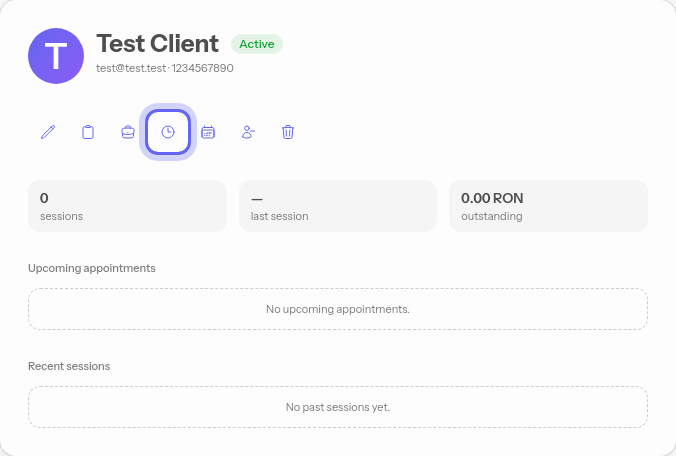
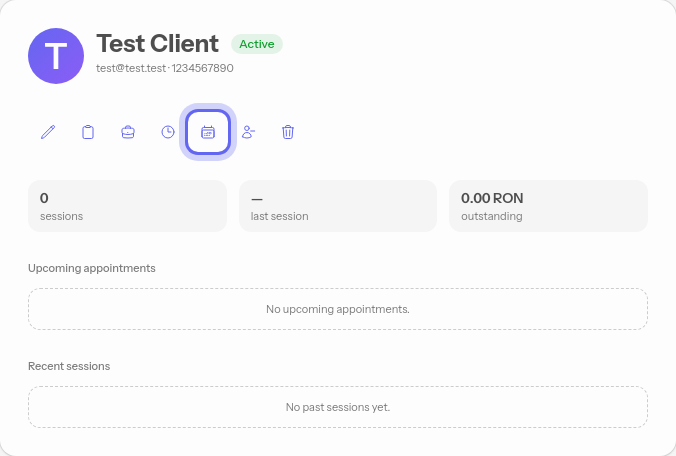
## Personal calendar
Send the client, by email, the link to their personal calendar.
> [!info]
> The client must have a saved email address so you can send them the link.
### What the client sees
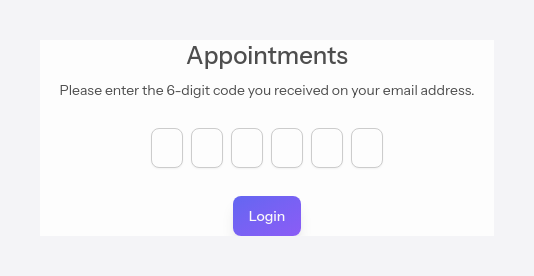
The client opens the link from the email and enters the 6-digit code they received. The code protects access, so only they can open their calendar.
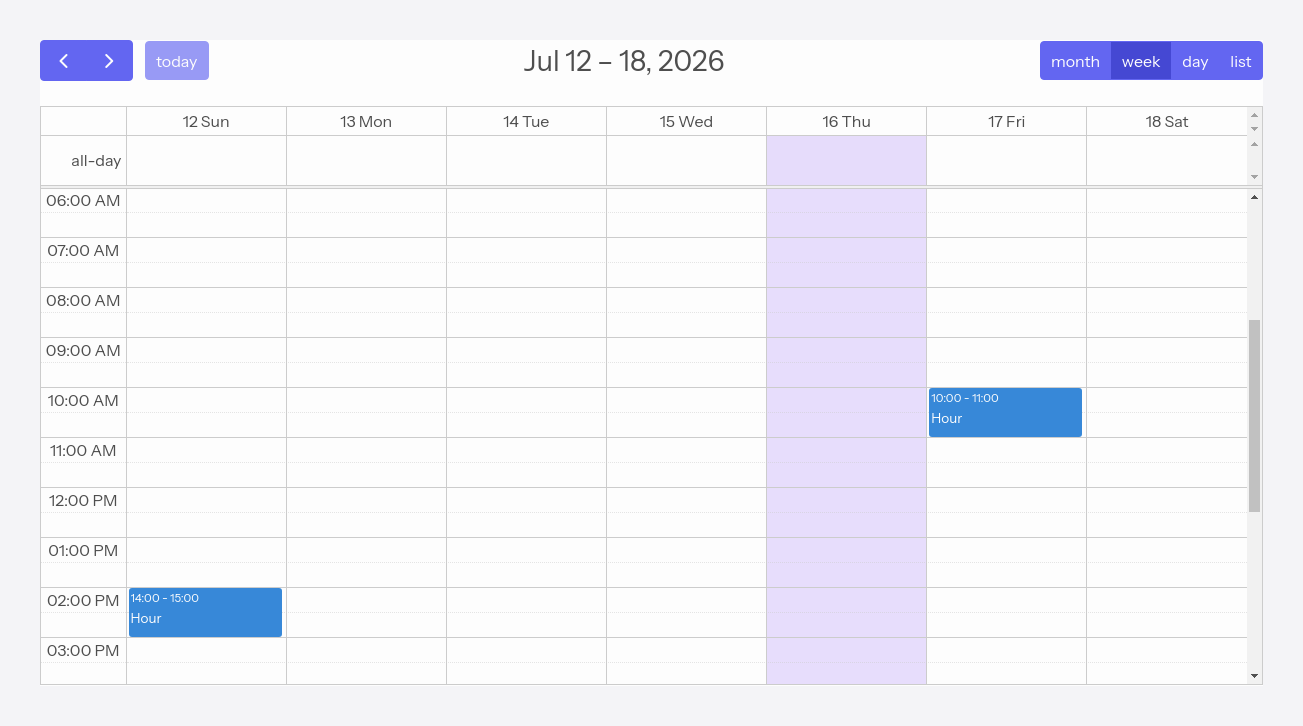
After entering the code, they see **only their own appointments**, in a calendar they can browse but cannot modify. They do not need an account and cannot see other clients' data.
> [!info]
> The link stays the same, but each time you press the button a **new code** is generated and sent to the client — the previous code no longer works. So only resend when needed.
## Self-booking
Send the client a self-booking link, through which they can pick a free slot themselves from your configured availability.
For more details you can consult the guide for the **[Self Scheduler](/help/scheduler)** system.
## Deactivate
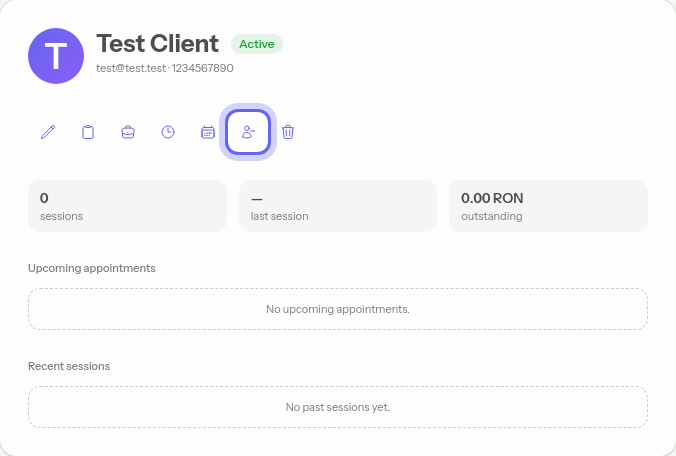
The **Deactivate** button, at the end of the actions row, hides the client from the active list without deleting their data. You can reactivate them at any time by pressing the button again — it becomes **Activate**. Inactive clients only show up when you tick the option to display inactive ones in the client list.
> [!info]
> If you only want to temporarily hide a client you no longer work with, use **Deactivate** instead of deleting them.
## Delete
The **Delete** button, at the end of the actions row, permanently removes the client.
> [!danger]
> **Warning — deletion is permanent and complete.** When you delete a client, **all of their appointments** and **all of their notes** are permanently deleted along with them. None of this data can be recovered after deletion.
> [!danger]
> A client with issued invoices **cannot be deleted** — invoices must be kept for accounting records. If you only want to remove them from the active list without losing anything, use **Deactivate**.