# Appointment types
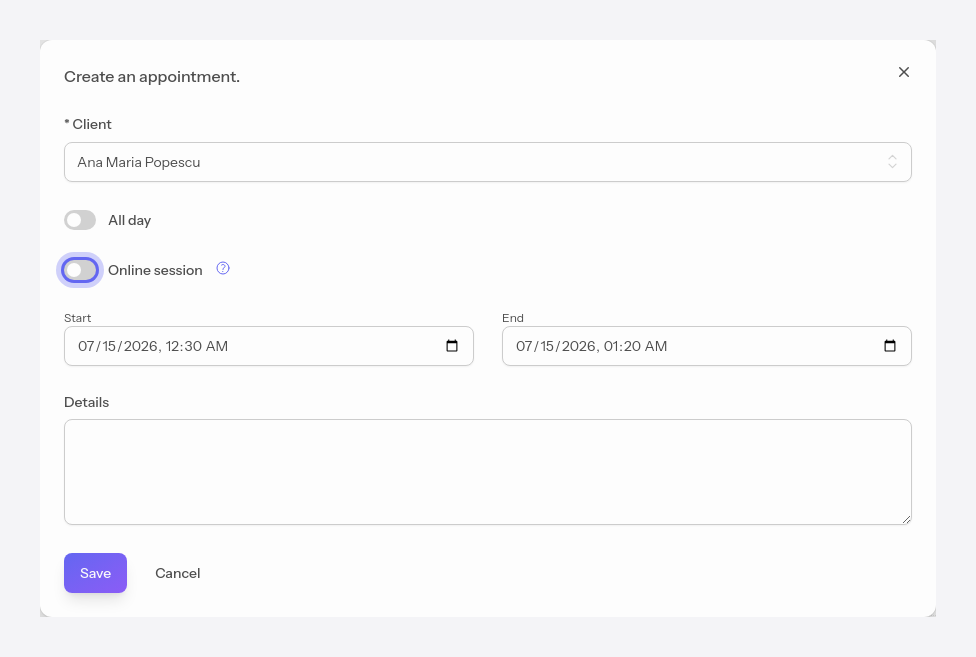
To create an appointment, click a free slot in the calendar. The form opens, where you choose the client, the start and end time, and, optionally, details.
## In-office or online appointment
The **Online session** field sets the type of the session. Left disabled, the appointment is in-office.
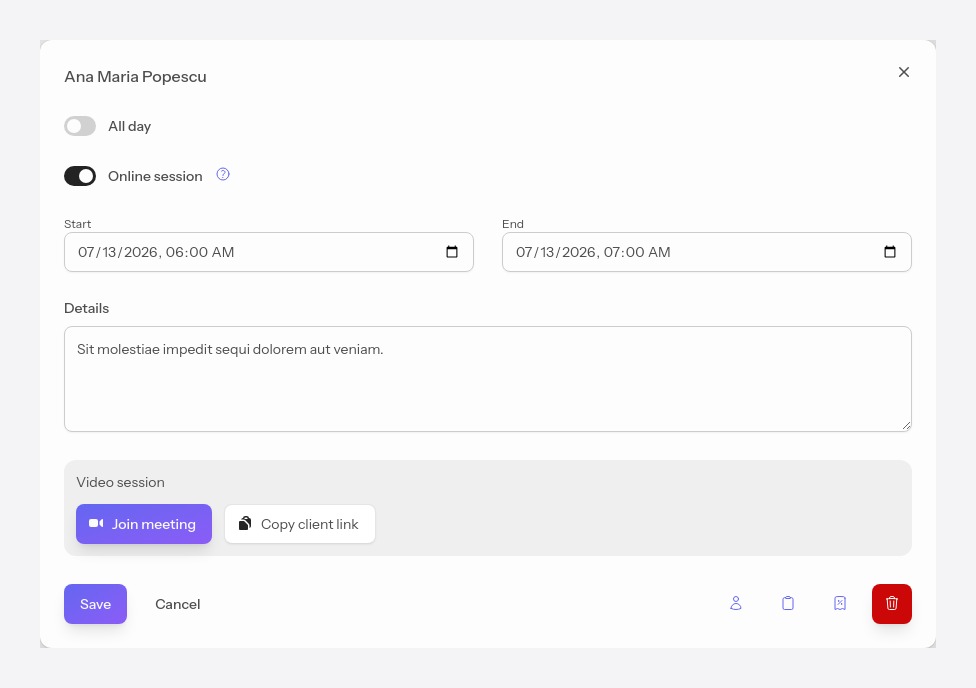
Enabled, the appointment becomes online, and the app automatically generates a video call link.
### Video session
An online appointment will generate 2 links for the video call when it is opened.
**Join the session** opens the video call as the host, and **Copy the client's link** copies the link you send to the client.
> [!warning]
> The links are valid as long as there is a participant connected, or for a maximum of 30 minutes after the appointment's end time
> [!success]
> If notifications are turned on for the client (see the **[Notifications](/help/notifications)** section), then they automatically receive the call link by email in the notification.
For more details about video calls, consult the **[Video calls](/help/video_calls)** section.